How to Fix a Slow Laptop: 10 Proven Tips (And When to Call a Professional)
Introduction
There’s nothing more fruIf you’re wondering how to fix a slow laptop, you’re not alone — it’s one of the most common questions we get at our Chiswick repair workshop. Whether your laptop takes five minutes to boot, freezes mid-task, or crawls through basic web browsing, the good news is that most causes are fixable — sometimes in minutes. In this guide we’ll walk you through 10 practical, expert-backed solutions, and explain the signs that mean it’s time to see a professional technician.
Why Is My Laptop So Slow? (Common Causes)
Understanding the root cause is half the battle. The most common reasons a laptop slows down include: too many programmes launching at startup and consuming RAM before you’ve even opened a browser; a hard drive that is nearly full, forcing the operating system to work harder to find free space; malware running silently in the background; overheating causing the CPU to throttle its own speed to avoid damage; outdated drivers or a Windows installation that has accumulated years of junk; and ageing hardware that simply cannot keep pace with modern software demands. Identifying which category you’re in will help you apply the right fix — rather than wasting time on solutions that don’t match your problem.
10 Ways to Fix a Slow Laptop
Restart your laptop — A fresh restart clears RAM and closes background processes that accumulate over days of continuous use. It’s the simplest fix and surprisingly often overlooked.
Disable startup programmes — Press Ctrl + Shift + Esc to open Task Manager, click the Startup tab, and disable anything you don’t need loading at boot. See Microsoft’s official guide on startup apps for a full walkthrough. This alone can cut boot times dramatically.
Run a full malware scan — Use Windows Defender or a tool like MalwareBytes free scanner. Silent malware is one of the leading — and most overlooked — causes of sudden slowdowns.
Free up disk space — If your drive is more than 85% full, performance drops sharply. Delete old downloads, empty the Recycle Bin, and run Disk Cleanup (search for it in the Start menu).
Update Windows and all drivers — Go to Settings > Windows Update. Outdated operating system files and drivers cause compatibility slowdowns that are easy to fix with a single update.
Change your power plan — Go to Control Panel > Power Options and switch from ‘Power Saver’ to ‘Balanced’ or ‘High Performance’ when plugged in. Power Saver actively limits CPU speed.
Upgrade your RAM — If your laptop has 4GB or less, upgrading to 8GB or 16GB is one of the most cost-effective performance boosts available. Most Windows laptops from the last decade support RAM upgrades.
Replace your hard drive with an SSD — Swapping a traditional spinning hard drive for a solid-state drive is the single biggest speed upgrade you can make. Boot times drop from minutes to under 30 seconds. Our laptop repair service includes SSD upgrades with full data transfer.
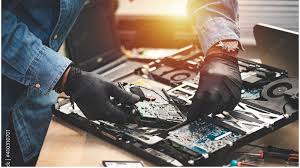
Clean the vents — Dust buildup forces the processor to slow itself down to avoid overheating. Carefully use compressed air to clear the exhaust vents. If the fan is very loud or the laptop shuts off from heat, bring it in for a professional clean.
Reinstall Windows cleanly — As a last resort, a clean Windows installation removes all accumulated software conflicts and junk files. Always back up your data first — or better yet, have a technician do it to ensure nothing is lost.
When Should You See a Professional?
If you’ve worked through the steps above and the laptop is still struggling, there’s likely a hardware issue at play that home fixes can’t resolve. Key warning signs that you need a professional include: the laptop shutting itself off due to overheating (thermal paste may have dried out on the CPU), a strange clicking or grinding sound from the hard drive (a classic sign of imminent drive failure — back up immediately), the machine refusing to complete Windows updates, or a laptop that is over five to six years old and degrading beyond what software tweaks can address. According to Which?’s guide to laptop lifespans, most laptops have a practical lifespan of four to seven years — but with the right repairs and upgrades, many can run well beyond that. A professional technician can run a full diagnostic in under an hour, pinpoint the exact cause, and often have your machine running like new the same day.
Frequently Asked Questions
Q: How much does it cost to fix a slow laptop in London?
A: Minor fixes like an SSD upgrade or RAM boost typically cost £80–£180 including parts and labour at our Chiswick workshop. A full diagnostic starts from £25 and is deducted from the repair cost if you proceed.
Q: Can a slow laptop be repaired without losing my files?
A: Yes, in almost all cases. Hardware upgrades and software fixes don’t require wiping your data. If a clean OS reinstall is the best solution, we always back up your files first.
Q: How long does laptop repair take?
A: Most common repairs — SSD upgrades, RAM upgrades, virus removal — are completed same-day at our Chiswick workshop. We’ll give you an honest timeframe when you book your diagnostic.
Q: Is it worth fixing an old laptop or should I just buy a new one?
A: For laptops under six years old, repair is almost always the better financial decision. An SSD upgrade and RAM boost costing £150 can add three to four years of useful life to a laptop that would cost £400–£600 to replace.
Microsoft’s official guide on startup apps → https://support.microsoft.com/en-gb/windows/change-which-apps-run-automatically-at-startup-9115d841-735e-488d-e749-9ba301d441e6 | • Which? guide to laptop lifespans → https://www.which.co.uk/technology/computing/laptops | • MalwareBytes free scanner → https://www.malwarebytes.com/
Introduction MacBook repair in Chiswick and Brentford is something our local workshop handles every single day — from cracked screens and dead batteries to liqu...
IntroductionOur laptop repair service in Brentford and Chiswick gets broken, slow, and damaged laptops back up and running — usually the same day you bring them...